How to put several photos into one PDF on your phone or computer
Turn three photos of a document into three pages of one PDF, in the right order and with the signatures still in frame.
Start with the last sheet. Can you read the date and see the entire signature? Retake anything cut off or blurred before making the PDF. Rotate the photos upright and name them 01, 02 and 03 if you're working with files.
iPhone
- On an iPhone with Preview, select the pictures in Photos and use Share → Save to Files.
- Open the first in Preview. Tap the menu next to its name, export as PDF and open the saved copy.
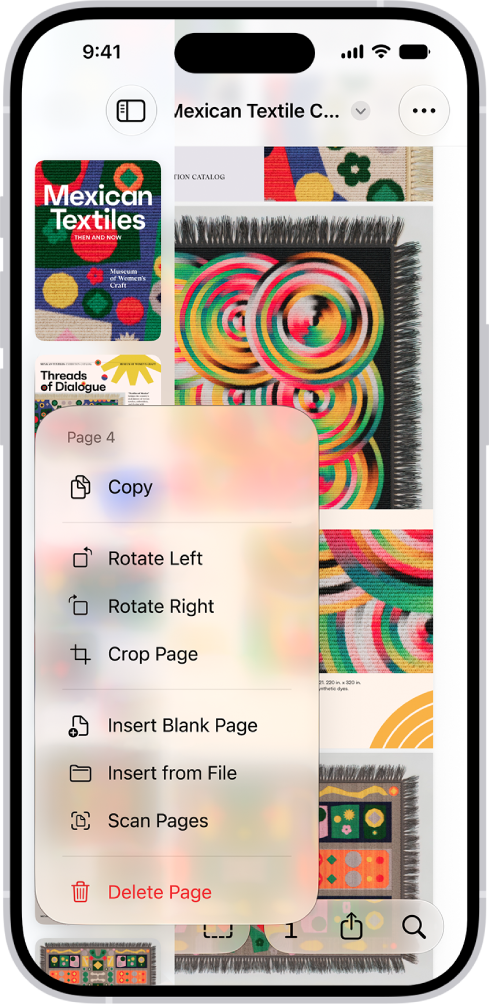
- Show the thumbnails. Press and hold the last page, choose Insert from File and add the next photo. Repeat for the third. Drag thumbnails to reorder or use their menu to rotate a page.
Android
- In Google Docs, create a blank document in Pages mode. Tap Edit, then + to insert the first image from your gallery.
- Place the cursor after it, insert a page break, then the next photo. Repeat. If a blank sheet appears, make the photo a little shorter using a corner handle.
- Under Share & export, choose Print, then Save as PDF in the printer list. Check the preview before saving. Docs may sync with your account. For local-only paperwork, use the desktop methods below.
Windows
- In File Explorer, sort the three JPGs by name, select them and right-click the first. Choose Print (under Show more options on some versions of Windows 11).
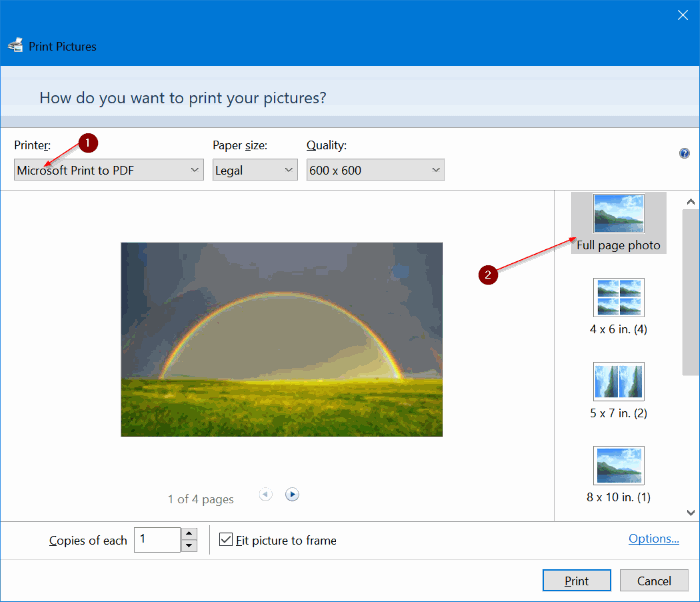
- Select Microsoft Print to PDF and one full-page photo per sheet. Clear Fit picture to frame if it clips the margins. Page through the preview, then print to a named PDF file.
Mac
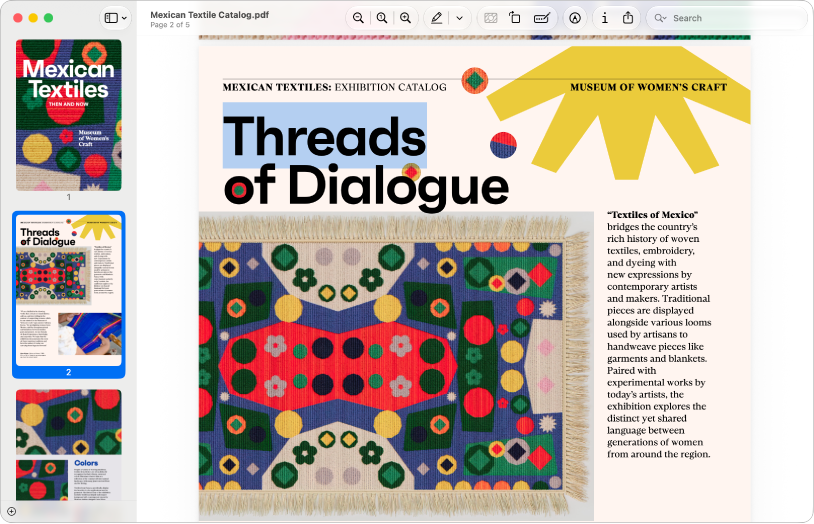
- In Finder, Command-click the files in reading order. Right-click → Quick Actions → Create PDF. The file appears alongside your photos. To move a page, open the PDF in Preview and drag its thumbnail.
Before you send it
Reopen the saved file. Check for three pages, legible dates and intact edges from the heading through to the signature. If an upload form rejects the file size, compress a copy.
Sources
Levomio
Add your photos in reading order and check that “Merge all images into one PDF” is selected. Use the JPG tool for JPEG photos or the general image tool for a mixture of formats.