How to serve WebP with a JPG fallback
Publish both versions of a photo with picture and check which file the browser actually loads.
A product page already has a working JPG. You can offer a lighter WebP at the same address for the page while keeping the existing JPG available for browsers that skip the new format.
Compare the files
Export both versions from a good master at the intended display dimensions. If you only have the JPG, inspect fine detail after converting it: the new encoding can introduce artefacts.
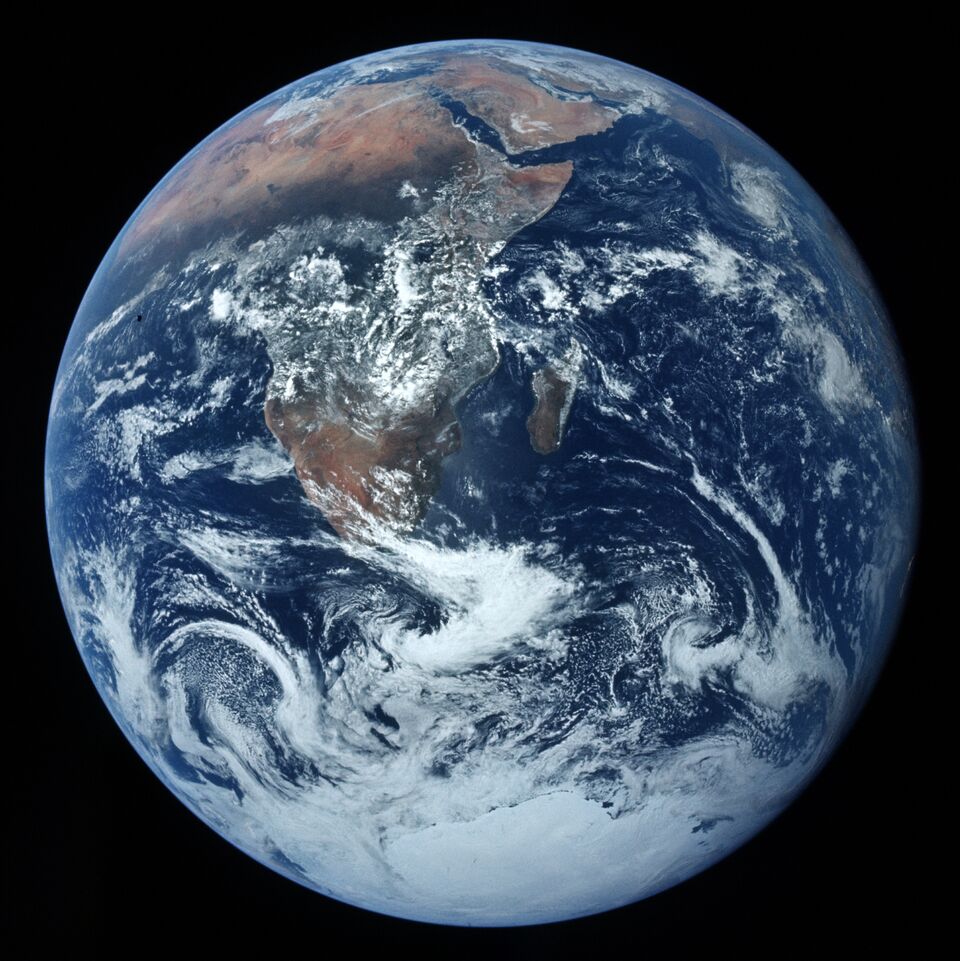
Our 960 × 961 Apollo 17 JPEG weighed 161,833 bytes. At quality 78, cwebp produced a 117,170-byte WebP at the same dimensions: 44,663 bytes, or about 28%, smaller for this particular photo.
cwebp -q 78 earth.jpg -o earth.webpOne photo, two sources
Put the files together as earth.jpg and earth.webp. The browser checks source elements in order. The img provides a fallback, dimensions and a text alternative. Adapt its description to your own photo.
<picture>
  <source type="image/webp" srcset="earth.webp">
  <img src="earth.jpg" width="960" height="961"
       alt="Earth from space, with Africa and Antarctica beneath the clouds">
</picture>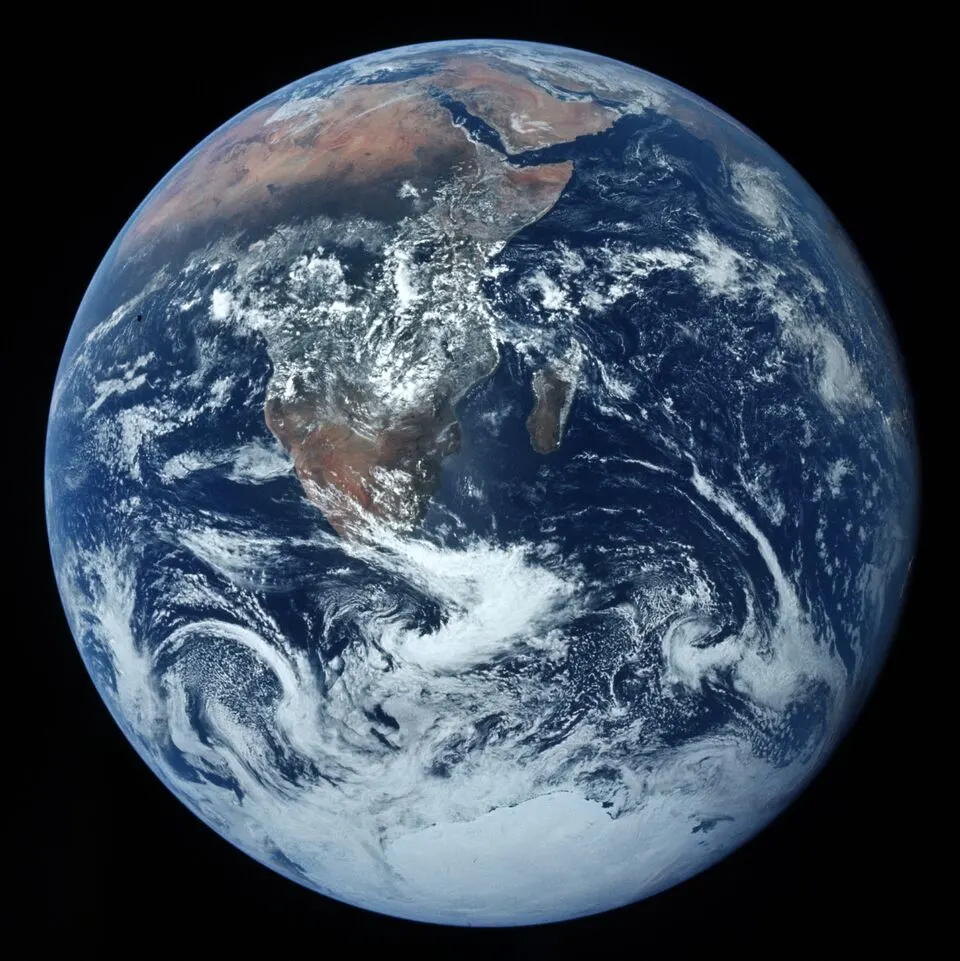
Inspect the network request
- In developer tools, open Network, filter by images, disable cache and reload. Scroll a lazy-loaded photo into view. Look for status 200 and Content-Type: image/webp.
- Remove source from a test copy and reload. You should now see earth.jpg. A 404 for a selected WebP doesn't automatically trigger the JPG fallback.
- Check the photo at display size. Raise quality if you see halos around clouds. For a small product card, try a smaller width if both files are heavy.