How to shrink a PNG screenshot without blurring the text
For a support ticket, crop the empty desktop first. Keep the error message and field name together so the reader can still see what happened.
Compare the same line of text
Our 960 × 640 interface screenshot starts at 39,781 bytes. The enlarged strips show the same letters without smoothing. Open a full PNG to judge it at normal size.

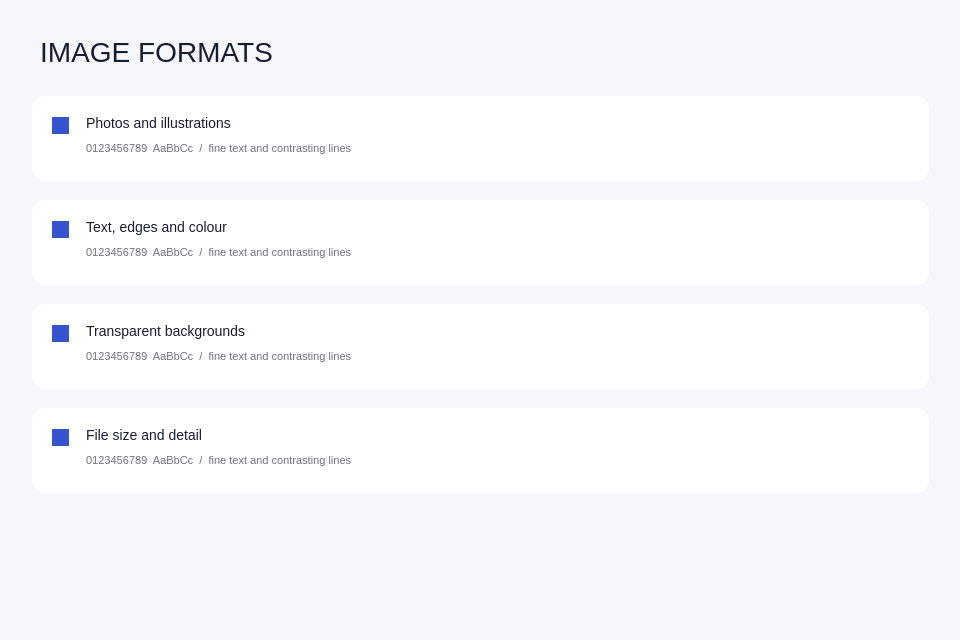

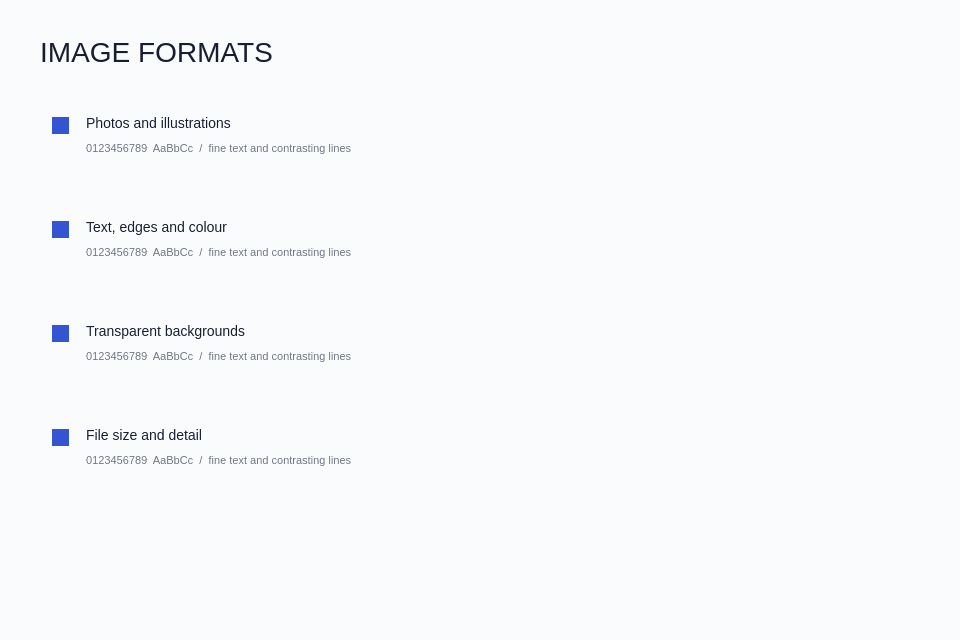

A second lossless pass at ImageMagick level 9 gave the same size and zero changed pixels. A 32-colour palette kept the letter dimensions and changed edge shades. Halving the width left half as many pixels across each stroke.
Try these settings in order
- Keep the original. Crop a copy and export PNG with high compression. This changes packing and encoding time without changing pixel colours.
- If it is still too big, use GIMP's Image → Mode → Indexed. Try an optimal 64-colour palette, then 32 on a simple interface.
- At 100%, check digits, thin rules and gradients. If the edges break up or bands appear, allow more colours or use the full-colour PNG.
When a detail is better than a smaller screen
Send the full window for context and a native-size crop of the error alongside it. Check that a ticket number or two adjacent lines are still distinguishable in the saved file.