How to save one frame of an animated WebP as a JPG
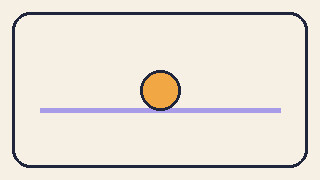
Freeze the ball in the middle of a three-frame animation and keep the full background.
Saving an animation directly as JPEG may give you the first frame, with the ball still on the left. Here's how to choose the exact moment without timing a screenshot.
Find the moment
Our 320 × 180 animation holds each of three frames for 450 ms. The ball is centred from 0.45 to 0.90 seconds into the first loop. Check individual frame durations in your own animation.

Pick a frame in GIMP
- Open the WebP in GIMP and use Filters → Animation → Playback to find the frame.
- For layers that only contain changes, run Unoptimize in the same menu. In the resulting image, leave only the desired layer visible and check the border and track.
- Export As a new .jpg and open the result. Use PNG if you need transparency.
Why a frame can look like a strip
WebP can store a changed rectangle instead of a complete picture. In our file, webpmux reports only 137 × 41 pixels for frame two. Coalesce the frames to combine each change with the preceding canvas before extracting a still.
webpmux -info motion.webp
magick motion.webp -coalesce frame-%02d.png
Export a still
- ImageMagick numbers the PNGs from zero. Open frame-01.png for the middle position and check that it measures 320 × 180.
- Choose a background before JPEG export; this command uses white. For a transparent still, keep the PNG.
- Reopen middle.jpg and check the track and ball. Save the WebP for motion or for choosing another frame later.
magick frame-01.png -background white -alpha remove -alpha off -quality 90 middle.jpg